


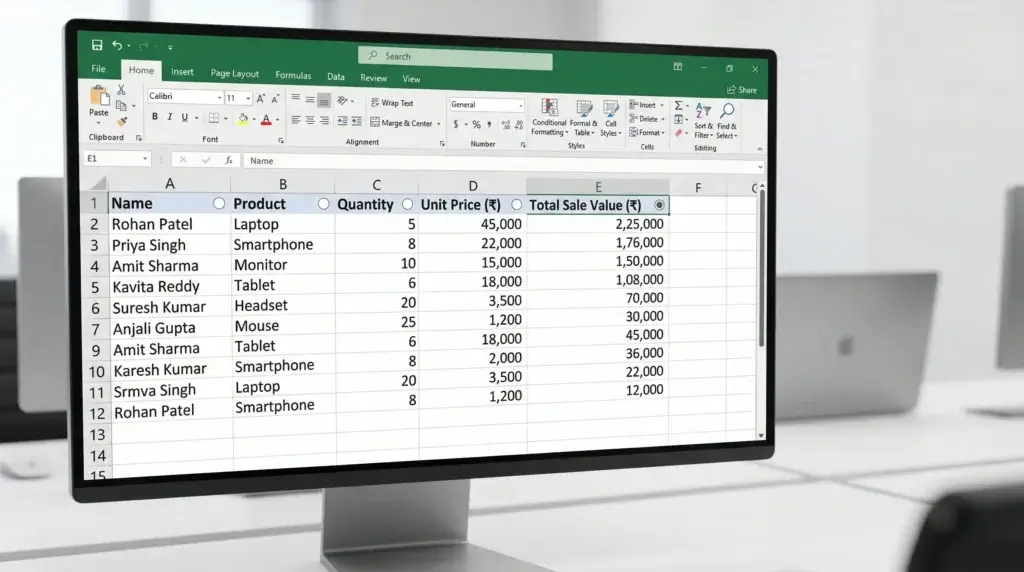
क्या आप चाहते हैं कि Excel में सिर्फ एक click से पूरा data sort हो जाए — बिना Filter लगाए, बिना बार-बार Sort dialog खोले? तो आज का यह tutorial आपके लिए ही है!
इस tutorial में हम सीखेंगे कि Excel के Option Button (Form Control) और SORT Function को मिलाकर एक ऐसा Dynamic Sorting Dashboard कैसे बनाते हैं, जहाँ आप जिस column header के पास Option Button click करें — data उसी column के हिसाब से automatically sort हो जाए।
यह trick खासकर Sales Reports, Employee Lists, Inventory Dashboards और किसी भी बड़े data के लिए बहुत काम आती है।
📺 Video Tutorial देखें
नीचे दिए गए video में इस पूरी trick को step-by-step demo किया गया है। पहले video देखें, फिर नीचे written guide follow करें:

📥 Practice File Download करें
इस tutorial को follow करने के लिए नीचे दिए गए button से practice file download करें और साथ-साथ सीखें:
⬇️ Practice File Download करें
(Google Drive से Free Download | File Format: .xlsx)
🎯 इस Tutorial में क्या सीखेंगे?
- Excel में Developer Tab कैसे enable करें
- Option Button (Form Control) क्या है और कैसे use करें
- Option Button को Cell Link से कैसे जोड़ें
- SORT Function से Dynamic Sorting कैसे करें
- Linked cell को Custom Format से कैसे छुपाएं
📊 हमारी Practice File का Structure
इस tutorial में हम एक Sales Data के साथ काम करेंगे। हमारी file में दो sheets हैं:
- Master Sheet — यहाँ original raw data है जिसमें 50 rows और 5 columns हैं:
Name | Product | Quantity | Unit Price | Total Sale Value - Sheet2 — यहाँ sorted output दिखेगा जो SORT formula के through automatically update होगा।
Column A1 (Sheet2) एक hidden control cell है — Option Button इसी cell की value बदलता है, और SORT formula इसी value को पढ़कर decide करता है कि कौन सा column sort होगा।
Step 1: Developer Tab Enable करें
Option Button insert करने के लिए सबसे पहले Developer Tab को Excel ribbon में enable करना होगा।
- Excel के ऊपर ribbon पर Right Click करें।
- Customize Ribbon पर click करें।
- Right side की list में Developer के सामने checkbox पर Tick (✓) लगाएं।
- OK button दबाएं।
अब आपके Excel ribbon में Developer tab दिखने लगेगा।


Step 2: Option Button Insert करें
अब हम Form Controls में से Option Button चुनेंगे और उसे sheet पर place करेंगे।
- Developer Tab पर click करें।
- Insert dropdown पर click करें।
- Form Controls section में Option Button (radio button icon) पर click करें।
- Sheet पर जाकर mouse से एक छोटा button draw करें — अपने पहले column header (Name) के पास।
💡 Tip: Option Button draw करते समय Alt key दबाए रखें — button automatically cell के grid के साथ align हो जाएगा।
Step 3: Button का Text Delete करें
Default में Option Button पर “Option Button 1” जैसा text लिखा होता है। हमें इसे delete करना है क्योंकि button header के ऊपर या पास में रखना है और text show नहीं करना।
- Option Button पर Right Click करें।
- Edit Text पर click करें।
- Button के अंदर जो भी text है उसे पूरा select करके Delete कर दें।
- Button के बाहर किसी भी cell पर click करके deselect करें।
Step 4: Option Button को Cell A1 से Link करें
यह इस पूरी trick का सबसे important step है। हर Option Button एक cell से linked होता है — जब आप उस button को click करते हैं, तो वह cell एक specific number store करती है।
- Option Button पर Right Click करें।
- Format Control पर click करें (या button select करके Ctrl + 1 दबाएं)।
- Control tab पर जाएं।
- Cell Link वाले box में
$A$1select करें (या directly type करें)। - OK click करें।
अब जब भी आप इस button को click करेंगे, A1 cell में value 1 आ जाएगी।
🔑 Logic को समझें: हमारे data में 5 columns हैं — Name (col 1), Product (col 2), Quantity (col 3), Unit Price (col 4), Total Sale Value (col 5)। जो Option Button हम “Name” header के पास रखेंगे, उसे A1 से link करेंगे, और जब वह click होगा तो A1 = 1 होगा। इसका मतलब SORT formula पहले column यानी Name के हिसाब से sort करेगा।
Step 5: बाकी Columns के लिए Option Buttons Copy करें
अब पहले button को copy करके बाकी सभी column headers के पास paste करना है।
- पहले Option Button को select करें (Right click → select, या Ctrl click)।
- Ctrl + C से copy करें।
- Ctrl + V से paste करें और बाकी column headers के पास drag करके रखें।
- यह काम सभी 5 columns के लिए करें: Name, Product, Quantity, Unit Price, Total Sale Value।
महत्वपूर्ण बात: सभी Option Buttons एक ही $A$1 cell से linked होंगे। लेकिन जब वे एक ही group में होते हैं, तो एक बार में सिर्फ एक ही select हो सकता है। Excel automatically इन्हें एक group मान लेता है।
जब आप:
- Name के पास button click करेंगे → A1 = 1
- Product के पास button click करेंगे → A1 = 2
- Quantity के पास button click करेंगे → A1 = 3
- Unit Price के पास button click करेंगे → A1 = 4
- Total Sale Value के पास button click करेंगे → A1 = 5

Step 6: SORT Formula लगाएं
अब सबसे मजेदार part! हम Sheet2 पर output area में SORT Function लगाएंगे जो A1 की value के हिसाब से automatically data sort करेगा।
Sheet2 में जहाँ आप sorted data दिखाना चाहते हैं उस पहले cell में यह formula लिखें:
=SORT(Master!B2:F51, A1, -1)Formula का breakdown:
Master!B2:F51— यह आपका original data range है (Master Sheet की B2 से F51 तक)।A1— यह वह cell है जो decide करती है कौन सा column sort होगा (1=Name, 2=Product, 3=Quantity, 4=Unit Price, 5=Total Sale Value)।-1— यह sort order है। -1 = Descending (Z to A, या High to Low), 1 = Ascending (A to Z, या Low to High)।
✨ SORT Function एक Spill Formula है — यह एक cell में formula डालने पर automatically पूरे data को नीचे तक fill कर देता है। यह Excel 365 / Excel 2021 में available है।
Formula enter करते ही आप देखेंगे कि data automatically sort होकर नीचे तक भर जाएगा।
अब अलग-अलग Option Buttons पर click करके देखें — data तुरंत उस column के हिसाब से sort हो जाएगा!

Step 7: A1 Cell को Hide करें (Custom Format Trick)
A1 cell में जो number (1, 2, 3, 4, या 5) दिखता है — वह user को नहीं दिखना चाहिए। इसे hide करने के लिए एक बहुत ही स्मार्ट Custom Number Format Trick use करेंगे।
- A1 cell को select करें।
- Ctrl + 1 दबाएं (Format Cells dialog खुलेगा)।
- Number tab में Custom category select करें।
- Type box में यह लिखें:
;;;(तीन semicolons) - OK click करें।
बस! अब A1 cell में value होगी लेकिन वह screen पर नहीं दिखेगी। Formula bar में value दिखती रहेगी, लेकिन cell blank नज़र आएगा।
🔍 यह Trick कैसे काम करती है? Excel का Number Format 4 parts में होता है:
[Positive];[Negative];[Zero];[Text]
जब आप;;;लिखते हैं, तो सभी चारों formats को blank (empty) कर देते हैं — इससे cell की value hide हो जाती है, delete नहीं होती।
Step 8: Final Result — आपका Smart Sorting Dashboard तैयार!
अब आपका Dynamic Sorting Dashboard पूरी तरह ready है! आइए एक बार पूरी process का summary देखें:
- ✅ Developer Tab enable किया
- ✅ हर column header के पास Option Button लगाया
- ✅ सभी buttons को A1 से Cell Link किया
- ✅ SORT formula लगाया जो A1 की value read करता है
- ✅ A1 को
;;;format से hide किया
अब जब भी आप किसी column header के पास option button click करते हैं:
- A1 में उस column का number automatically update होता है
- SORT formula उस number को पढ़ता है
- पूरा data तुरंत उस column के हिसाब से sort होकर दिख जाता है
यह है असली Excel Smart Trick — Manual sorting छोड़िए, Smart बनिए! 🚀
📋 SORT Function Quick Reference
SORT function का complete syntax:
=SORT(array, [sort_index], [sort_order], [by_col])| Parameter | Description | हमारे Example में |
|---|---|---|
array |
वह data जिसे sort करना है | Master!B2:F51 |
sort_index |
कौन सा column sort होगा (number में) | A1 (1 से 5 तक) |
sort_order |
1 = Ascending, -1 = Descending | -1 (Descending) |
by_col |
TRUE = columns sort होंगे, FALSE = rows (default) | नहीं दिया (default FALSE) |
🌟 Extra Pro Tips
1. Ascending और Descending Toggle बनाएं
अगर आप एक ही button से Ascending/Descending switch करना चाहें, तो sort_order की जगह एक formula use करें:
=SORT(Master!B2:F51, A1, IF(B1=1,-1,1))जहाँ B1 को एक अलग toggle button से link करें।
2. Column Headers भी Add करें
Output area में headers manually लिखें या SORT formula के ऊपर एक row में original headers refer करें।
3. SORT Function नहीं है तो?
अगर आपके पास Excel 2016 या पुराना version है जिसमें SORT function नहीं है, तो SORTBY या Index-Match combination use करें। या Microsoft 365 में upgrade करने पर विचार करें।
निष्कर्ष (Conclusion)
आज हमने सीखा कि Excel में Option Button और SORT Function को मिलाकर एक बेहद powerful और user-friendly Dynamic Sorting Dashboard कैसे बनाते हैं।
इस trick की खासियत यह है कि:
- 🎯 बिना किसी Filter या Manual Sort के data organize होता है
- ⚡ एक click में instant result मिलता है
- 🧹 A1 cell hidden है तो dashboard बिल्कुल clean दिखता है
- 📊 किसी भी data size के साथ काम करता है
अगर आपको यह tutorial helpful लगा हो, तो इसे अपने दोस्तों और colleagues के साथ WhatsApp, Facebook पर share ज़रूर करें।
और ऐसी ही काम की Excel tricks सीखने के लिए TheOfficeTutorials.com को visit करते रहें!
Happy Excelling! 😊